Skip to content

Category: Random Thoughts

I coded from an API for the first time, and so can you!

A couple of weeks ago, my library upped our Libguides instance to Libguides CMS, which means that a few weeks ago I came to be in charge of a system that has APIs for the first time in my life. We got the system so that we can pull more robust information from Libguides into our discovery system (so that’s our systems librarian’s domain, not mine), but there have been a couple of tiny things I’ve wanted to do that would be so much better with an API than with the built-in widgets, so I cracked my knuckles and set to learning.

Here’s the first tiny project I did, narrated so that you can do something similar if you, like me, are not an expert in web coding but have access to Libguides APIs.

Building an API-fed dropdown menu

I know, I know, there are dropdown menus of guides available in the built-in widget builder, but I don’t like how they look, and I don’t like that you need the “Go” button to make them go. So this made a perfect first toe-in-the-water project for me.

Getting data via the API

First, I needed to figure out how to make an API request. Libguides CMS “Endpoints v1.1” has a section to GET Guides, a list of “parameters,” an example request, an example return, and not much else. It took me a while to figure out that the example request didn’t work because it was asking for 2 specific guide IDs — IDs for guides that do not exist in our system. Once I deleted those two numbers I could start building requests that actually worked.

Then I figured out that you add a parameter by adding “&parameter_name=parameter_value” to that base URL. So http://lgapi-us.libapps.com/1.1/guides/?site_id=…=owner&sort_by=name would take all our guides and sort them by guide name. From there I could happily keep adding parameters, and if I wanted both “Course” and “Subject” guides but not other guides, I could put a comma between the parameter values “2” and “3” to get “&guide_types=2,3” in my request URL.

Other useful terminology I learned along the way that will help my future Googling includes:

In the end, I created an API request for published guides, sorted by name, and filtered to just those having a particular tag. Here’s an example record from the JSON output I got from that request:

Using the API-generated data to feed a dropdown menu

Then came the searching around through StackOverflow for examples of code that uses a URL to point to JSON-formatted information, examples of code that use JSON fields to populate a dropdown menu, and examples of code that use javascript to add an “event sniffer” to a dropdown menu so that when a user selects an option, the menu opens a new URL without requiring anything else (like clicking a pesky “go” button). This step took me a while… In the end, I fiddled and fiddled with example code until all of a sudden, bits and pieces started to work! So exciting! And little by little I arrived at code that works for me.

Here’s an annotated version of what I built (and an html document you can download and mess with).

(And if you are someone who actually knows what they’re doing, and you see that I made dumb mistakes/choices, please let me know! I’m eager to learn.)

Comments closed
Microfilm Whimsy

Last year one of our microfilm reader/scanners bit the dust, and we know that our ancient analog reader/printer is one service call away from the junk yard. And oddly enough, our microfilm gets fairly regular use here, so being down to one machine was going to be a pinch. So now, as of last week, we have a new machine.

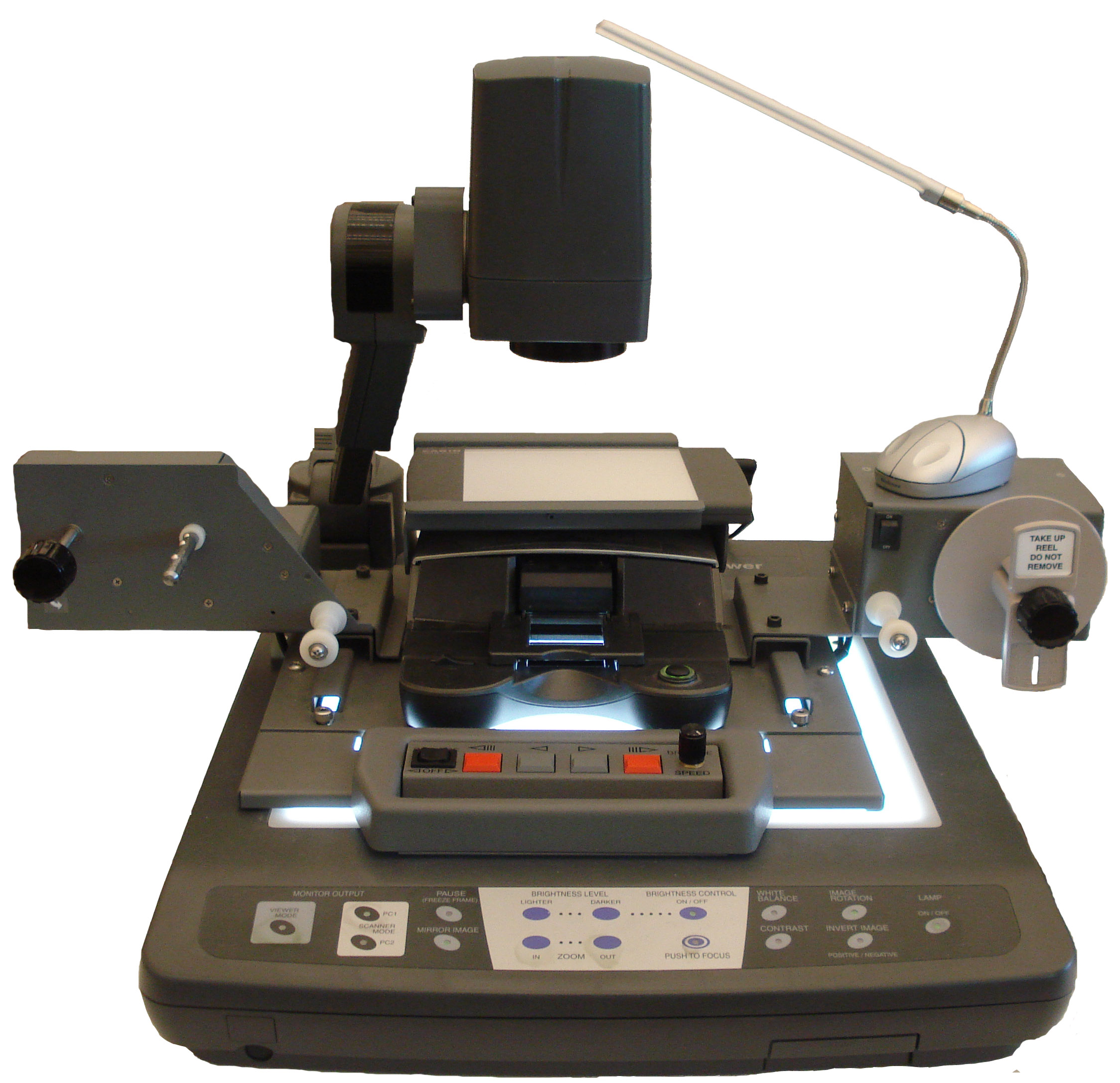
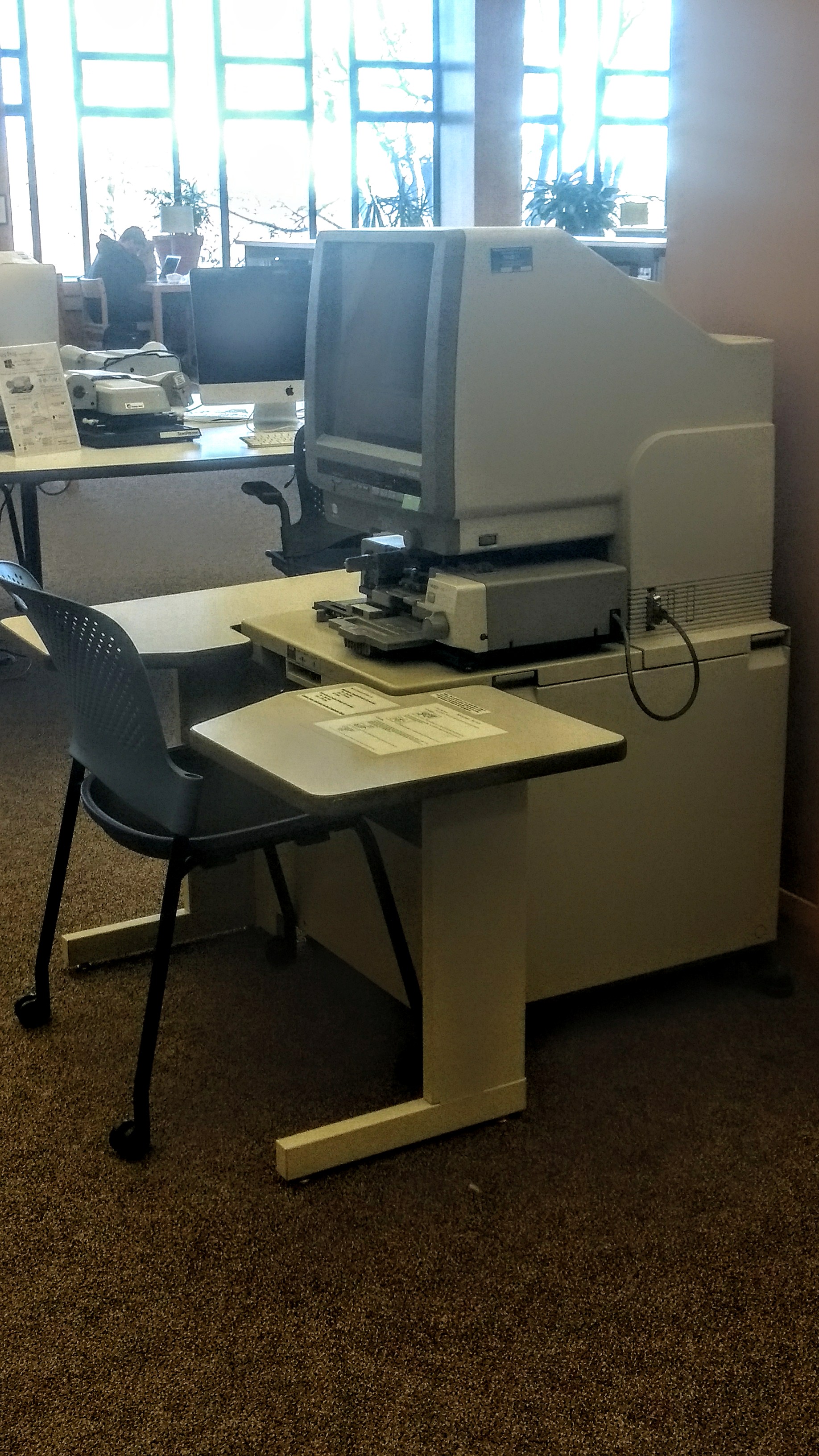
Our dear old T-Rex

Gemini wasn’t exactly this, but it was a lot like this. (Image from here.

This means that we had to come up with a name for our machine, of course. We’ve been naming our machines for at least the last decade when a former colleague said that our first reader scanner should be called Gemini, because it looked like twins.

Then I said our ancient analog machine should be called T-Rex, because it’s ancient but powerful and a fan favorite.


My first year here, we got a fancy new machine that had a silhouette that reminded me of Yoda meditating on a rock, so we called it Yoda. This machine was also mostly a mystery to all who tried to use it, not least because it had no less than 7 on/off switches. Plus a light made to look like a mouse, but wasn’t a mouse, and was actually completely unnecessary unless you were looking at opaque microcards. But nobody could ever remember that. So being simultaneously powerful and utterly mysterious also fit with its name.

You can see Yoda sitting on a rock, right? Right??

Time passed. At some point Gemini was beyond support. And eventually we got a new machine.

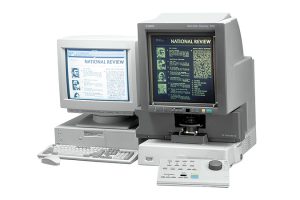
Our next machine reminded one of our campus IT folks of the character Crazy Frog, and the name stuck.

And now, as of last week, we have this new machine which looks almost exactly like Crazy Frog, but it isn’t Crazy Frog, and it will be taking over for both deceased Yoda and (eventually) T-Rex. So we spent some quality time this week naming it, and we ended up merging ideas from another campus IT person and from a librarian in my department. The new name? Yandu-Bot. It’s a robot version of a Yandusaurus. It merges the old and the new. It’s way more automated and powerful than our other machines. And as an added bonus, because it has the letters Y and D in that order in its name, the desktop systems administrator doesn’t have to make any changes to the computer and related systems it’s hooked up to, which all have the letters YD for Yoda.

2 Comments

News you can use: Obama signs bill modernizing terms referring to minorities in two sections of the U.S. Code

Seal_of_the_United_States_Congress.svgYou know you’re a librarian geek when you read the headlines telling you that Obama has signed a bill that will strike “oriental” and “negro” from two sections of the U.S. Code and think “What a good reminder that  full text searching through government documents is tricky.” And yes, that was me when I read those headlines on Friday.

And here’s the language from the bill itself.

(a) Office Of Minority Economic Impact.—Section 211(f)(1) of the Department of Energy Organization Act (42 U.S.C. 7141(f)(1)) is amended by striking “a Negro, Puerto Rican, American Indian, Eskimo, Oriental, or Aleut or is a Spanish speaking individual of Spanish descent” and inserting “Asian American, Native Hawaiian, a Pacific Islander, African American, Hispanic, Puerto Rican, Native American, or an Alaska Native”.

(b) Minority Business Enterprises.—Section 106(f)(2) of the Local Public Works Capital Development and Investment Act of 1976 (42 U.S.C. 6705(f)(2)) is amended by striking “Negroes, Spanish-speaking, Orientals, Indians, Eskimos, and Aleuts” and inserting “Asian American, Native Hawaiian, Pacific Islanders, African American, Hispanic, Native American, or Alaska Natives”.

First, I’m somewhat horrified to find the periods on the “wrong” side of final quotation marks — I guess Congress doesn’t go by standard U.S. style guides.

But more importantly, this means that if you’re full-text searching the U.S. Code, and you know to be careful to use outdated language when searching through historic documents, you should now OR in modern language if you’re searching through the Local Public Works Capital Development and Investment Act of 1976 and the Department of Energy Organization Act.

Here ends your communique from a librarian geek interested in search language.

Comments closed

Searching and Browsing: Lessons for Life from Libraries

Our campus is in the midst of moving from one email/calendar solution to another, and from local network storage to cloud storage. (Specifically, we’re moving from Zimbra to Gmail and Google Calendar, and from local network storage to Dropbox — we already use Google Drive but it doesn’t fill all the needs in the file storage area.) So all of a sudden there’s this moment where the campus gets to/has to think about individual and departmental practices and figure out if these processes can or must change during the transition. (Personally, I totally geek out on these kinds of conversations, but you’re not surprised to hear that, I’m sure.) Tucked into these conversations, there’s a topic in which two very entrenched camps face off: Do you rely on search to find your email or files? Or do you rely on a folder structure? In library terms this comes back to the age old balancing of search vs browse.

Here’s the thing (and take it from a librarian, because we’ve built a whole profession on this over many many many years) most people cannot rely only on Search or only on Browse. Most people need to have mechanisms that allow for both.

Here’s why. Search relies on there being the right letters-in-a-row in your query, which the computer then matches to the letters-in-a-row contained in the items it indexes or in the metadata associated with those items. If there’s a misspelling, if there’s more than one word for the thing you’re searching on and the other person used the other word, or if there’s no built in metadata for the type of thing you’re trying to gather, search will fail you. Search will be useful in many ways and may even be your primary entry point into your saved emails or files, but it is not sufficient.

This means that there also have to be mechanisms that allow for smart browsing. In email and file storage, these mechanisms are folders or tags or labels or whatever. In library catalogs these are subject headings and call numbers. These are the things that get applied in a consistent way to say “all of these messages are related in a meaningful way, regardless of the keywords and metadata.” It would take too much time to make everything browsable in all possible ways, so Search is also important if you have anything more than a very few emails or files. So Browse won’t work all the time, but it is important.

For me, it’s important that I have a way to browse just the emails between me and my students because I really can’t remember all the names of everyone who meets with me, or what words we used in our emails, so if I want to be able to go back to a conversation the only thing in my head that I can use as a hook to go back into my email and pull relevant messages out is “student.” So I created a folder for that. I have similar folders for major projects where I know I’ll need to skim back over information that I can’t gather together through a search. The same principle governs my folder structure on my computer.

For me, I rely heavily on search, especially for email. Probably 85% of my email goes into the main archived email bin without being tagged or put into a folder. But I’ve searched for enough things in my life that I know for sure and certain that it won’t solve all my retrieval needs. Browsing is also critical.

And just for a few more thoughts on organizing your stuff, here’s an archivist talking in simple and useful ways about using her professional training to help her with her computer files. Enjoy!

Comments closed