Skip to content

Category: Tools and Technology

Updating URLs after transitioning to the new Primo interface

If you work at a library that has or soon will be transitioning to the new Primo interface, and if you have research guides or other web pages that link into content from the old interface, read on because you may want to consider doing a URL updating project even though there’s an automatic redirect.

First of all, if you link to searches done in regular Primo (not the journals a-z list), those apparently don’t redirect. If you link to items from regular Primo or to Journals list items or searches, there’s a redirect but it takes a long time to resolve — about 25 seconds in my library’s configurations. Long enough for me to click a link, get a drink of water from the fountain outside my office, come back, and still wait a bit for the screen to load. (Plus it flashes through a couple of weird pages including a “zero results” page that just isn’t true.) And finally, the old Journals list didn’t have an option to search by ISSN, so many results (like if you’re looking for the journal Science) were pretty messy. The new platform does have an ISSN search, which is far more accurate for direct linking.

Given all of this, I’m updating every URL from our libguides to our catalog, both to make it resolve directly to the new interface and to have journals resolve to an ISSN search whenever possible. If you want to do something similar you can follow (or improve upon) my process.

Learn how to distinguish between old an new URLs.

The main distinguishing features of my campus’ configuration is that the old URLs contain /primo_library/ and the new URLs contain /primo-explore/ instead. In addition, there are three sub-types of URLs that might be useful to know:

  1. Primo Query URLs (the ones that probably won’t redirect)
    1. Old: [your institution].com/primo_library/libweb/action/search.do?…
    2. New: [your institution].com/primo-explore/search?…
  2. Primo single record permalinks
    1. Old: [your institution].com/primo-explore/fulldisplay?…
    2. New: [your institution].com/primo_library/libweb/action/display.do?…
  3. Primo Journals A-Z list
    1. Old: [your institution].com/primo_library/libweb/action/dlSearch.do?…
    2. New: [your institution].com/primo-explore/jsearch?…

Pull your list of old URLs

So now you can go into the Search/Replace feature of Libguides and do a search for all content items containing the URL snippet either for all of the old versions, or for each of the three sub-types of the old version, depending on your workflow.

NOTE: You cannot use the Replace feature built into Libguides because the old URLs put search terms at the end of the URL, but the new URLs put the search terms both into the middle and at the end.

So, do your search, and then select all the records Libguides pulls back for your search, and paste them into a spreadsheet. I then delete the messier/unnecessary columns so that I end up with a first column to indicate whether I’ve fixed that URL or not followed by three of the columns that Libguides generated: Asset ID, Asset Type, and Asset Title. (I used Google Sheets for this.)

If you’re like us, you’ll have several hundred links to update, all told. And obviously this will be a lot less painful if you do a project BEFORE starting this project to go through and consolidate multiple copies of links. And unfortunately there’s no automated option to do that consolidation project, either.

Updating Libguides assets

Now the fun part ends and the tedious part begins. Here’s a little screen cast of how I change each link. And if you prefer words, here’s the process:

  1. Have two tabs open: your new Journals A-Z search and the spreadsheet from Libguides.
  2. Click on the link to the Asset ID to open the Libguides record for that asset
  3. Open the asset for editing
  4. Collect the URL and open it in a new tab – you now have two tabs that are “temporary,” the Asset and the Redirected-and-Resolved Primo tab
  5. For journal records, open a record for the correct journal and collect its ISSN
  6. Back in the tab for the Journals search on the new platform, search for that ISSN
  7. Collect the URL from the new platform’s ISSN search and paste it into the Libguides asset’s URL field.
  8. Click “Save” and close the two “temporary” tabs.
  9. Mark the column in your spreadsheet so that you know that this asset has been updated.

For URLs that don’t need any special investigating (figuring out exactly which journal was intended or if there are special limiters invoked in the original Primo search that you need to recreate in the new search, etc) it takes nearly a minute per asset, so it’s definitely a good idea to listen to podcasts or audio books or something while you work your way through the spreadsheet.

Comments closed


Best Practices for Groups using Zotero

I was recently asked to write up some best practices for groups using Zotero, and I thought I’d share them here. While the language and specifics of these practices are all Zotero-centric, I’ve done very similar things with Mendeley and EndNote as well, though they don’t have standalone notes, so you have to make a well-named citation and use its notes fields to fulfill similar functions.

First off, it is worth it to pay for storage from Zotero. There are work-arounds using Box, but that adds a layer of complexity that I have seen go wrong when, for example, you have collaborators spread all over the place and not everyone is tech savvy or has library or IT support.

I’ve also seen people register a Zotero account and then share login credentials to that account with a group. This is not a good idea for a bunch of reasons. Everyone should have their own account and then be added to a group library.

With those two things as ground work, here are some things to consider as you launch a group project using Zotero. The larger your group or longer-term your project, the more these practices will matter.

Setting up the structure

  1. Create a space that serves as your “inbox” for new stuff, before it’s processed/corrected/tagged/whatever. That way you can go merrily along collecting collecting collecting, but not mess up the organizational structure or lose your unprocessed stuff in the giant pool of processed stuff. If it were me, I’d make my own personal zotero library into my inbox area, and only move things to the Group library once it had its PDF associated, metadata cleaned up, etc. Alternatively, you could have a tag that you associate with new stuff so that you can gather it all together and process it.
  2. In the main Group library, have a standalone note that describes the workflow of the group and defines how you are using tags, folders, and “related” items in this group. For example, some people use folders for procedural steps and tags for topic categorization, some people do the opposite, and some people do something else entirely. But this note will make it clear to the whole group how folders, tags, and “related” items function in this space.
  3. In the main Group library, have a standalone note for tag definitions. Name it something that will guarantee it’s at the top of an alphabetical list (like _TagDefs). Apply every tag to this note (so that it comes up whenever any tag is selected). In that note, list each of your tags and a brief definition so that everyone on the project knows what it means and how to apply it. Whenever you create a new tag, be sure to update this tag definitions note and then add that tag to the note as well.
  4. In each sub-folder in the Group Library, have a standalone note that describes what that folder is meant for.
  5. If you’re going to use tags systematically, I suggest UNCHECKING the preference that automatically gathers subject headings from databases, because these are all over the place and will clutter up your tag list. All the other check boxes on that main screen of the preferences help, but this one doesn’t unless you really only use one database/catalog and it has good set of subject terms.
  6. Plan on not having too many tags/folders. “Too many” is subjective, of course, but once you get scores of them they become very difficult to scan through and select. They should hit that sweet spot of functioning to gather together useful chunks of items rather than having only 1 or 2 items per tag/folder or having nearly all your items in a tag/folder. Novices to tagging tend to come up with too many, and constantly add new ones, which really doesn’t help with organizing a group library.
  7. It can be useful to have a way of tracking procedures, either using tags or folders. These would be like “needs ILL” or “follow up” (which I use for things where there’s a gold mine of a bibliography that I know I’m going to want to go back to and start looking up and saving relevant items from the references).

Saving/organizing items

  1. Save into your “inbox” space, however you’ve set that up. (Be aware that whatever folder is selected in Zotero, that’s where all your new saved items will go, so check this before going on a saving spree.)
  2. Check all the metadata Zotero pulled in when you save an item. Frequently there are capitalization/spelling/data errors that need to be corrected manually.
  3. If Zotero wasn’t able to pull in the PDF automatically, download and then drag the PDF in (and having the OpenURL resolver set up in preferences can help you with this — and if that didn’t sound like English to you, check out the instructions under “Making the “Library Lookup” option work like the library’s “Find It” button” in the top left-hand box on this guide for an example, though of course Carleton’s URL won’t work for other colleges).
  4. Once you’ve saved and cleaned up your item information, open the list of sub-items (the little triangle next to the item citation in Zotero) and right-click on the PDF, and then select “Rename File from Parent Metadata.” That way the PDF itself will have citation information in its file name, which saves headaches if you download it later on and end up with a million “out.pdf” or “1957ty3593.pdf” files on your computer.
  5. A single item can be saved to more than one sub-folder, which is far better than having multiple copies/versions of a single item.
  6. An often-overlooked function is the “related” function. This can link together versions of the same work, or an item with items it cites/is cited by, etc. In group work this helps other people see the connections that you’ve found between works. (It can be helpful to have a written definition of how people think of “related” so that, for example, someone doesn’t put all the books on cats together as “related” rather than just tagging them with the subject “cats.”)

So basically, the theme of all of this is to make it so that there’s explicit shared understanding of how to use the various functions, and then give every new item the TLC it needs in order to coexist with all the other items.

Have a favorite tip or practice? Leave it in the comments here!

1 Comment

Downloadable EndNote Output Styles for MLA 8th Edition

Last time MLA changed its citation style, it took EndNote several years to update its built in MLA style. So if you’re looking for an Output Style to use with EndNote that conforms (as much as possible) to the new MLA Handbook, 8th Edition, I’ve created files you can download and install.

  1. Drag the two style files that you find in this folder into the Styles folder that EndNote looks at (you can see where your own installation is looking by going to Preferences > Folder Locations).
  2. Set MLA 8th as your output style by opening EndNote, clicking the “Edit” menu and then “Output Styles.” You may need to click on “Open Style Manager” the first time, at which point it might be useful to check the box next to the new MLA styles so that they’re listed with your other “favorites.”
  3. Download and read this ReadMe file that includes special instructions on using EndNote with this Output Style. (For the sake of convenience, I will also put the ReadMe information here in this blog post.)

If you run into problems or come up with improvements, please let me know!

Using the Style

To make sure that EndNote generates good citations, here are some important things to know:

  • URLs for web sources other than library databases should be included, but do not include the “http://“ or “https://“ part. You will have to make this edit individually in the records for your items as there is no way that I know of to programmatically take those prefixes out of the URL in EndNote.
  • Fill in the “Date” field with the day and month, but not year, like so: “21 Jan.”
  • If your work has no listed author, be sure to include a “short title” in your record because this is what will show up in your in-text citations.
  • If your work’s author is also the publisher, leave the Author field blank.
  • If you are focusing on an aspect of the work done by a person who is not the creator of the main content, put that person’s name in the “Author” field. Then put a descriptive label (editor, performer, translator, etc.) in the “Label” field.
  • If you are looking at an “unexpected type of work” (a transcript of a broadcast, a manuscript of a published work, etc), put a descriptive word into the “Type of work” field (such as “Transcript” or “Manuscript”).

Special Instructions by Reference Type

Web Page:

  • Add the name of the web page within a site to the “Title” field, and the name of the full web site to “Series Title” field.
  • Do not include the year of the “Last updated date” as that will be duplicated from the “year” field. Instead enter the date in the this way: “26 Jan.”
  • Add the name of the organization that sponsored or published the web site to the “Publisher” field.

Film or Broadcast:

  • If you are treating the director as an author, put the name into the “Director” field. If you are treating the director as an Other Contributor, put the name into the “Credits” field.

Map:

  • If your map is part of a collection that has a title (such as “Google Maps”) put that title into the “Series Title” field.

Artwork

  • If you experienced a work first hand, put the location name (museum name, city name, etc) in the “Place Published” field.
  • If you found the work reproduced online, use the “Artwork” reference type and put the online database name in the “Database Name” field.
  • If you found the work reproduced in a book, magazine, etc., use the reference type that matches the thing where you found the reproduced artwork (“Book Section,” “Newspaper,” etc.)

Manuscript:

  • Put the word “Manuscript” in the “Type of Material” field. If you are using the Manuscript field for something other than a manuscript, then put a similarly descriptive word in the “Type of Material” field.

Caveats

The new MLA style gives people many, many options. Sadly, none of the reference managers that I know of are currently that flexible, so there are some things that are options in the style that people will not be able to do automatically using EndNote or any other software in their current states. Most notably, there is no good way, currently, to do the following:

  • Use a description (without quotation marks or italics) in place of a title for untitled works
  • Add the optional place of publication to citations
  • Add the optional access date to citations

To do these things and the other optional descriptive work allowed in the 8th edition, you’ll want to finish your final draft, save a new copy of your document, use the “Convert to plain text” option under “Tools” on your EndNote toolbar to break the connection with the EndNote program, and then do any final edits that the program cannot do for you.

Comments closed

Building a LibX Edition for Primo

As of yesterday, we’re a Primo library. So for the last couple of days we’ve been working to change all the things that need changing after you get a new catalog. One librarian is doing most of the work to change all of our links to our old catalog or items in the catalog in all of our LibGuides. Meanwhile, I took on trying to get LibX to recognize our new catalog.

The LibX thing turned out not to be the least bit straightforward, so I thought I’d post what I did in case a) you want to try this and can benefit from my hours of fumbling, or b) you are good at this and can help me make what I did better. I was helped to get this far by a librarian from the LSW.

Start an Edition

In the Edition Builder, it might be a good idea to first search for the Carleton College edition and copy that to use as a base, or you can click “Build a New Edition” on the right of the page.

From here, there’s one confusing thing that will help for the rest of the time. To find your edition and edit and test it, you’ll click on the “my editions” tab. Then click on the edition name on the lower left side. THEN click on the revision you want to work on in the list of revisions that shows up to the right of the “Select an Edition” box. THEN, if you don’t see a “Revision x is being worked on” notification, you’ll have to either click “Open Revision x (modify)” or, if you have a live revision that you want to modify you’ll have to click “Copy Revision x Forward.” At this point you’ll end up with tabs across the top to configure the various different functions of the LibX extension.

Configuring your Primo instance with LibX

You’ll need the Web Developer extension (chrome or firefox) to find the variable names LibX asks for. Once you’re armed with that, click on the “Catalogs & Databases” tab in the LibX Edition Builder for your new Edition.

LibX catalog

I tried to get LibX to auto-detect my catalog’s settings, but it kept saying that it couldn’t do it, so I had to resort to manual set-up. So under “Manual Configuration” I chose ExLibris Primo and then clicked “Add Catalog.” After this you’ll need to add information to both the “Required Settings” and the “Optional Settings” for the catalog (my edition didn’t work at all until I added some things to the “optional” settings… so apparently they aren’t terribly optional).

The URL you need is JUST the base URL up to the .com. All the other parameters that ExLibris puts into Primo URLs have to be added in other spots.

Then you’ll need to find things that LibX calls “Advanced Search Choice Variable 1,” “Advanced Search Mode Variable 1,” etc. Fire up the Web Developer “Inspector” tool and point it to the boxes I’ve labeled here:

advanced search variables

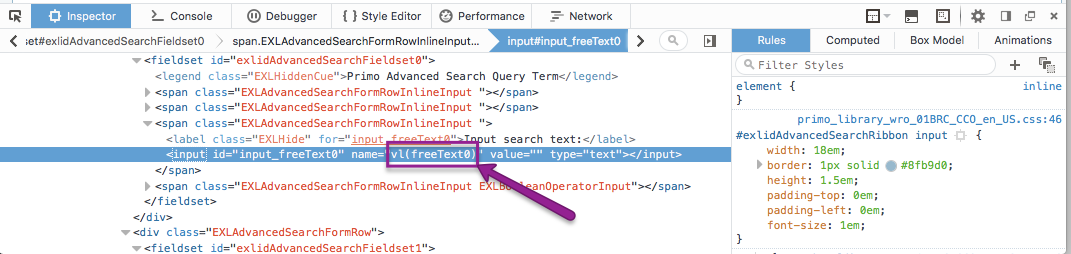
When you click the Inspector tool on the Advanced Search Choice Variable 1 (the first search box), you’ll find the variable name in the Web Developer browser pane:

variable name

Put that value into the corresponding field in LibX, finding and entering each of the variable names in the required fields in LibX.

You’ll find your VID in the standard URL for your catalog. I’ve bolded our VID in our URL here: http://carleton-primo.hosted.exlibrisgroup.com/primo_library/libweb/action/search.do?vid=01BRC_CCO

In the Optional settings, you’ll need to fill in 5 of the fields, as far as I can tell:

  1. In “Path” put “/primo_library/libweb”
  2. In “Search Function” put “search”
  3. In “Basic Mode Variable” try putting in “vl(1UIStartWith0)” — you may have to adjust this, but it’s worth a try.
  4. In “Tab Variable” put “default_tab”
  5. And in Title Search Mode put “contains”

Beyond the Catalog

The thing I use LibX most for is the added right-click context menu in my browser that allows me to reload the page through my library’s off-campus access, so I highly recommend putting your proxy information into the “Proxy Access” tab on the LibX Edition Builder.

You can also add your Open URL base url to the OpenURL Resolvers tab. If you do this and select a logo, then that logo will appear next to citations online, allowing you to click on the logo and check for library access. (You can add your own logo in the “File Management” tab.)

Testing your Edition

Back in the “My Editions” page, click on the Revision you’ve been working on and then click the link that appears below it called “revision test page.” If you can search your catalog through the test page, congratulations! If not, I don’t have a lot of advice beyond asking around and maybe trying to have the LibX folks help you out (you can click “help me with x edition” in the “Select an Edition” box to the left of the list of revisions).

Go Live

Once things are ready, click on the revision you’ve been perfecting and then click “Make Revision x Live.”  Now people will be able to download the LibX extension for Chrome or Firefox, tell it which library they want, and start using it.


3 Comments